

meta data for this page
Network Config Assistent
Many products like the SmartPLT has a direct connection to connec it to a standart Ethernet LAN Network. This makes it possible to use the SmartPLT with standart Ethernet equipment that is available all over the world and is very cheap. Ethernet LAN gives you also the possibility to scale and adjust the system completely to your needs, from easy small single lane setups to complete olympic shooting ranges very easily.
However the Ethernet LAN Network needs to be configured. If you have the knowledge to do so you can do this manually and build up more complex systems. However if you have just an easy setup you can use the network config assistent to do the configuration automatically.
What is the Netowrk Config Assistent doing ?
The Netowkr config assistent is assigning an Static IP adress to the network device in your computer you are using to connect to the ALS-Shooting equipment.
Note for experts: the ALS Equipment comes with a preset static IP Address in the Range of 192.168.178.100 - 192.168.178.245. During fabrication we count this number up to lower the chance you get two devices with the same IP Address in your network. However you can change the IP Address of the devices in the SmartPLT Live Software. We are using no DHCP Configuration by default as in many configurations you dont have a router or any other DHCP Server available, so its a bit more easy to set static unique IP Adresses on each device even it has the downside that you need to configure a static IP Address on your Computer as well.
Step by Step
- You can find the Network Configuration Assistent directly in the SmartPLT Live Software

- After you starte the Assistent you will see this window on your screen
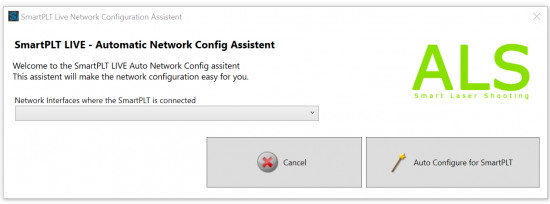
- On this window you need to select the network interface you want to use to connect to your ALS-Shooting device. Select the network interface from the list. If more then one items are in the list, please veryfy which adapter you want to use to connet to your SmartPLT Target. For instance if you working on a laptop computer normally you have connected the equipment with a wire to your computer so you are not using the WIFI / WLAN adapter. So look for a an interface in the list that has not the word “WIFI”, “Wireless”, “WLAN” in its name. Instead you are looking for a network interface thats named “Gigabit Network”, “Ethernet” or similar. Select it from the List like you see in the picture:
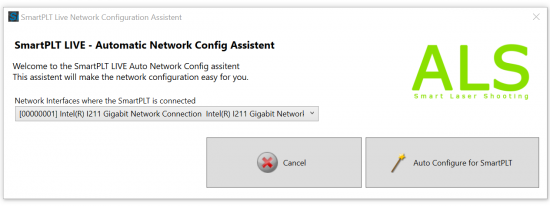
- Click the Auto Configure SmartPLT button.
- Resart SmartPLT Live Software
- Now the Computer sould be able to connect to your ALS-Shooting Ethernet Equipment